
Nissan Sentra Owners Manual: How to use the APPS – i button
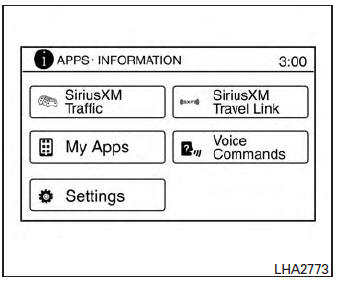
For more information about the “SiriusXM Travel Link�, and “SiriusXM Traffic� features, see the separate Navigation System Owner’s Manual.
For more information about the “My Apps� key, see “NissanConnect™ App Smartphone Integration� in this section.
For more information about the “Voice Commands� key, see “NISSAN Voice Recognition System� in this section.
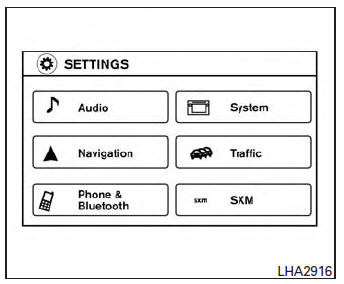
To select and/or adjust several functions, features and modes that are available for your vehicle:
- Press the [
 ] button.
 - Touch the “Settings� key.
- Touch the desired item.
| Menu item | Result | ||||||
| Audio | |||||||
| Navigation | |||||||
| Phone & Bluetooth | |||||||
| System | |||||||
| Display | |||||||
| Brightness | |||||||
| Display Mode | |||||||
| Scroll Direction | |||||||
| Clock | |||||||
| Time Format | |||||||
| Date Format | |||||||
| Clock Mode | |||||||
| Set Clock Manually | |||||||
| Daylight Savings Time | |||||||
| Time Zone | |||||||
| Language | Touch this key to change the language on the display. | ||||||
| Camera | Touch this key to change the camera settings. | ||||||
| Display Mode | Touch this key to select the touch-screen display mode (day, night, or automatic). | ||||||
| Brightness | Adjust touch-screen brightness. | ||||||
| Contrast | Adjust touch-screen contrast. | ||||||
| Color | Adjust touch-screen color. | ||||||
| Temperature Unit | Touch this key to change the temperature unit being displayed (Fahrenheit or Celsius). | ||||||
| Touchscreen click | Toggles the touch-screen click feature on or off. When activated a click sound will be heard every time a key on the screen is touched. | ||||||
| System Beeps | Toggle the system beep tones feature on or off. When
activated, a beep sound will be heard when a pop-up message appears on
the screen or a button on the unit (such as the
 button) is pressed and held button) is pressed and held
for 2 seconds. |
||||||
| Return to Factory Settings/Clear Memory | Touch this key to return all settings to default and to clear the memory. | ||||||
| Software Licenses | Touch this key to display software licensing information. | ||||||
| Traffic | Touch this key to display traffic settings. See the separate Navigation System Owner’s Manual for more information. | ||||||
| SXM | Touch this key to display SXM status information. For SXM setup, refer to “Audio System� in this section. | ||||||
 button
To change the display brightness, press
the
button. Pressing the
button again will
change the display to the day or the night display.
If no operation is performed within 5 seconds, the display will return to the previous display.
Press and hold the button for more than
two seconds to turn the
display
off. Press the
button again to turn the display on.
How to use the ON-OFF button/VOL (volume) control knob
Press the ON-OFF button to turn audio function on and off. Turn the volume control knob to adjust audio volume.
How to use the CAMERA button
For more information regarding the CAMERA button, see “REARVIEW MONITOR� in this section.
 How to use the touch-screen
CAUTION
The glass display screen may break if it
is hit with a hard or sharp object. If the
glass screen breaks, do not touch it.
Doing so could result in an injury.
To clean the display, never ...
 RearView Monitor (if so equipped)
When the shift lever is shifted into the R (Reverse)
position, the monitor display shows the
view to the rear of the vehicle.
WARNINGFailure to follow the warnings and
instructions
fo ...
Other materials:
ECU diagnosis information
A/C AUTO AMP
Reference Value
VALUES ON THE DIAGNOSIS TOOL
TERMINAL LAYOUT
PHYSICAL VALUES
DTC Inspection Priority Chart
If some DTCs are displayed at the same time, perform inspections one by one
based on the following priority
chart.
DTC Index
*: Perform self ...
Front manual seat adjustment
Forward and backward
Pull the center of the bar up and hold it while you
slide the seat forward or backward to the desired
position. Release the bar to lock the seat in
position.
Reclining
To recline the seatback, pull the lever up and lean
back. To bring the seatback forward, pull the ...
Ecu diagnosis information
ECM
Reference Value
VALUES ON THE DIAGNOSIS TOOL
NOTE:
The following table includes information (items) inapplicable to this
vehicle. For information (items) applicable
to this vehicle, refer to CONSULT display items.
Numerical values in the following table are reference values.
Thes ...
